

Hoa Ta’s online ordering and artwork visualization tool has officially launched Version 2.0, featuring an upgraded interface and new capabilities to deliver a more seamless online print-ordering experience for our customers.
VG-Lab would like to walk you through an overview of the key updates in Version 2 of this Web2Print platform.
Print file submission area
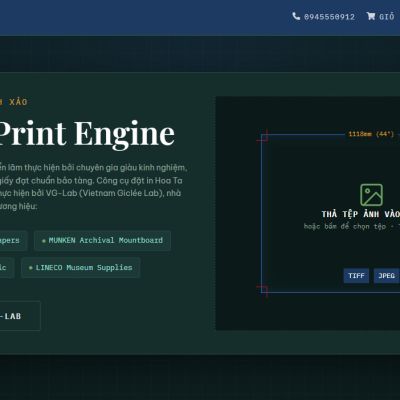
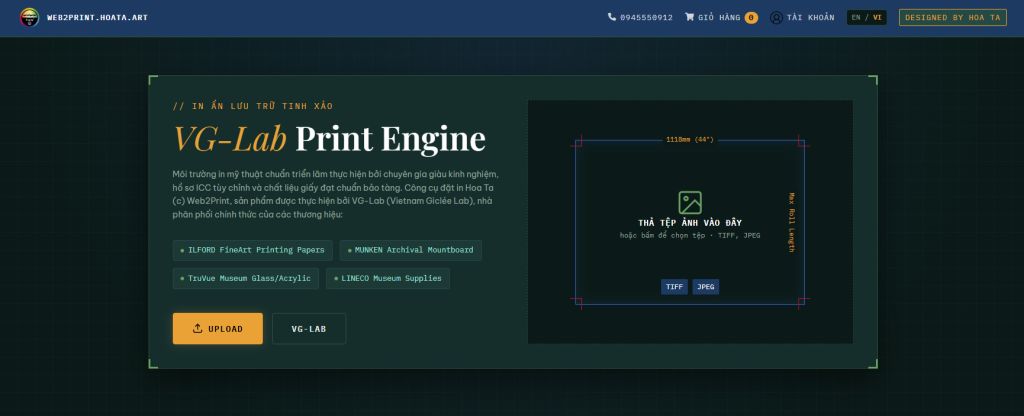
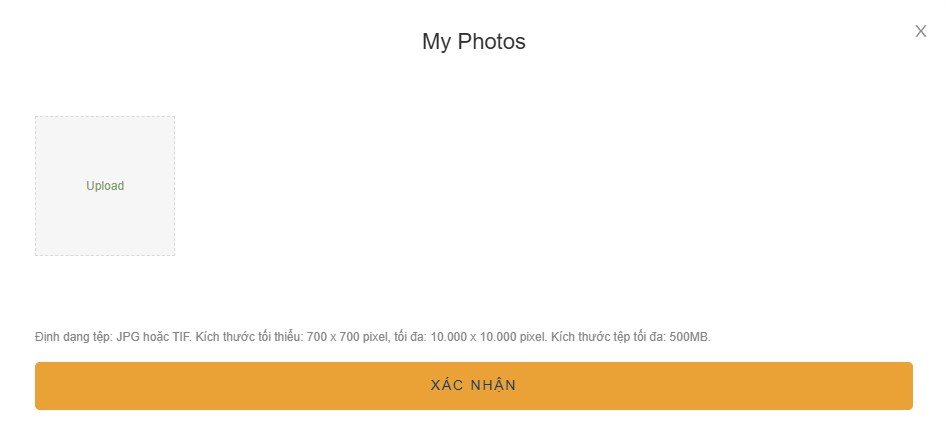
When visiting the website via https://web2print.hoata.art/, you will find the area to upload files to VG-Lab’s server using two methods: clicking the ‘Upload’ button or dragging and dropping files into the drop zone located on the right side of the screen.
New feature, web2print now can upload multiple images at once.
Your uploaded files will be processed and appear in the My Photos window, as shown below.
Workspace
Once the file has been uploaded to the system, you will be directed to a workspace.
In version 2, Hoa Ta web2print offers the following two workspaces:
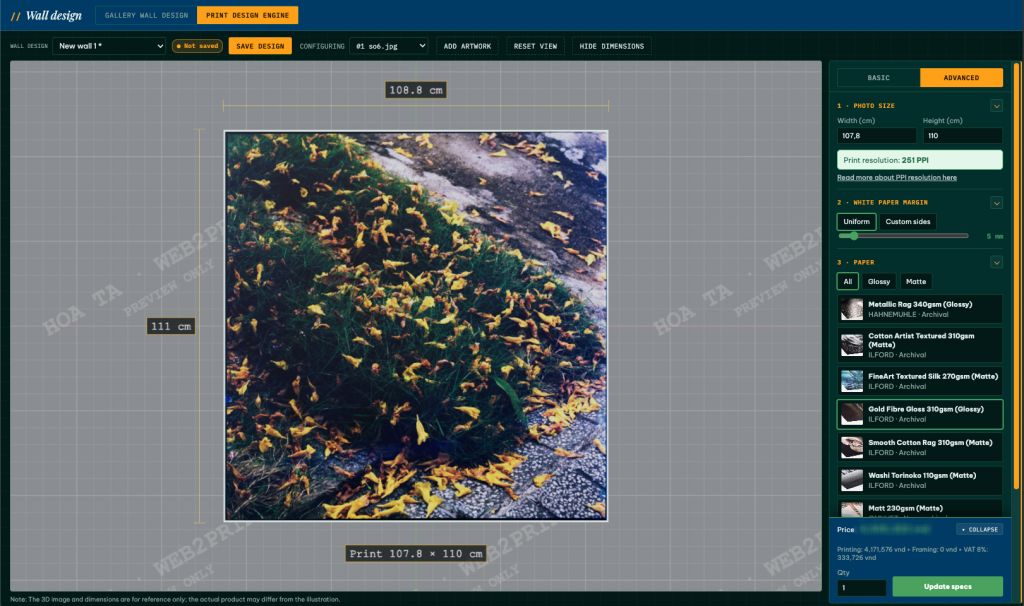
1. Print Design Engine (3D workspace): This is the space where you can customize the dimensions of your print and frame. Upon uploading one image to the system, you will be taken directly to this 3D workspace.
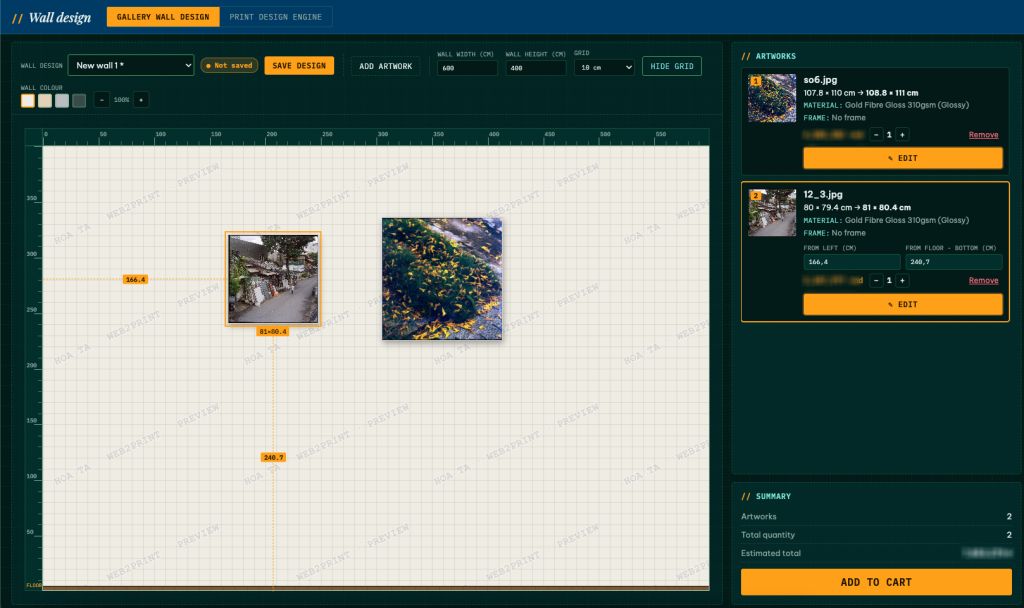
2. Gallery wall design (2D workspace): A workspace designed to help you plan the placement of your artworks—whether on an exhibition wall, in a living room, a meeting room, or a bedroom—ideally suited for arranging multiple pieces.
Once you upload 2 images to the system, you will be directed to this 2D workspace.
Print Design Engine (3D workspace)
Workspace switcher
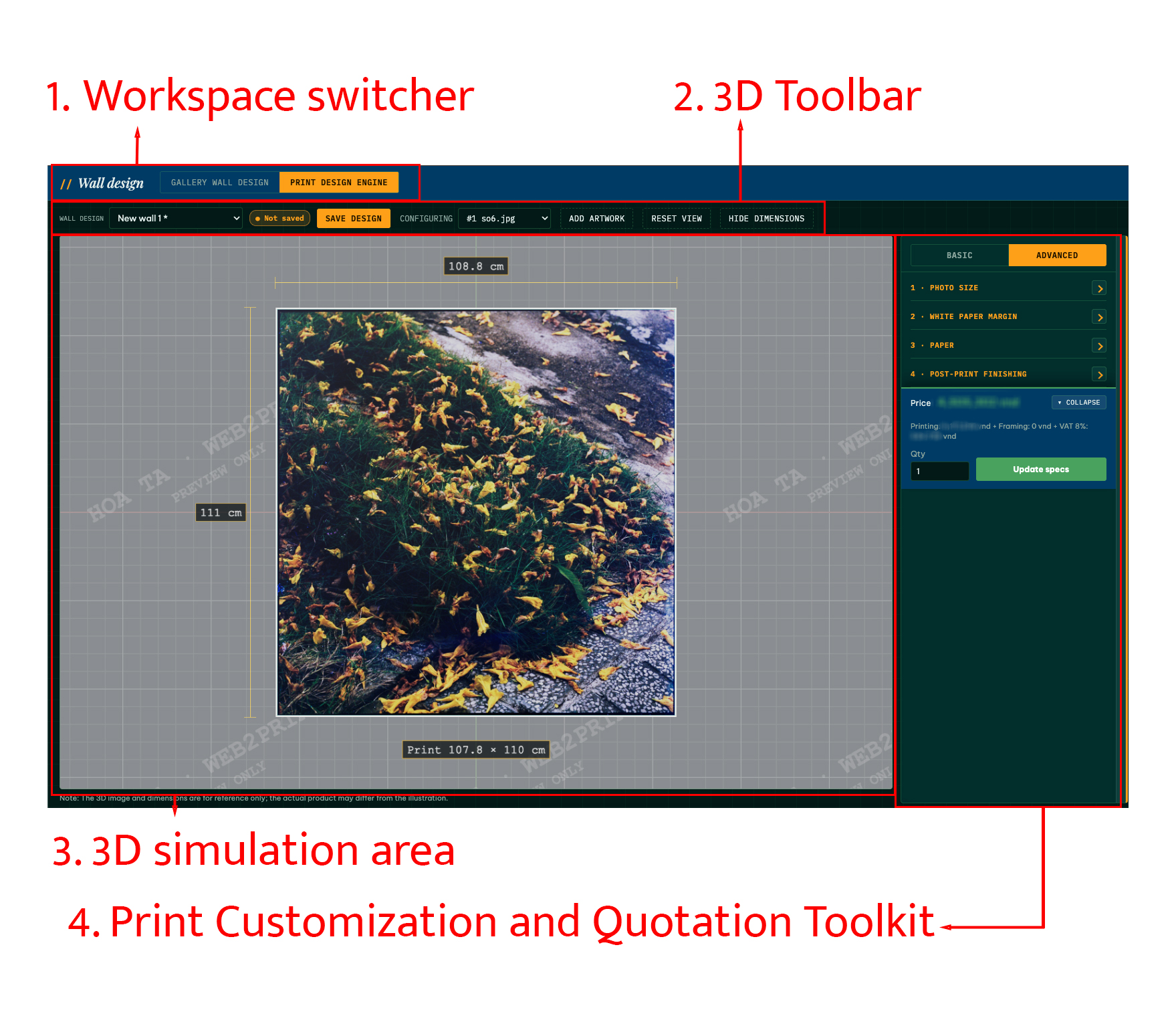
The button allows you to switch flexibly between 2D and 3D workspaces.
3D Toolbar
The 3D toolbar includes the following functions (from left to right):
a) Display of the wall design currently in use – in this illustration, it is “New Wall 1.”
b) Filename of the artwork being configured: In this example, the file is “Hao_1.tiff.”
c) “Add Artwork” button: Used to upload a new file.
d) “Reset View” button: Used to set the 3D simulation to a direct, head-on perspective (the default view shown in the illustration).
e) “Show/Hide Dimensions” button: Used to toggle the display of the artwork’s dimensions.
3D simulation area
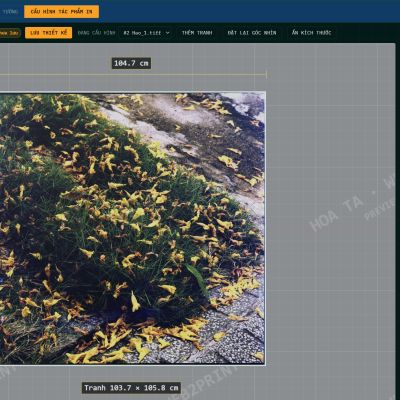
The 3D simulation area helps you visualize what your piece will look like once printed and framed.
Print Customization and Quotation Toolkit
The print customization toolkit includes two modes: Basic and Advanced.
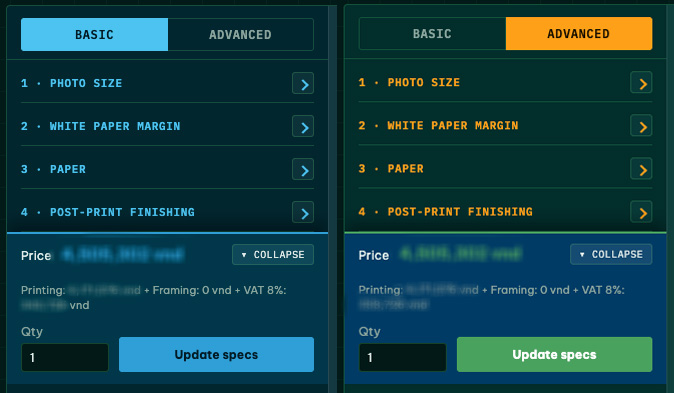
Both of the above modes include the following steps:
Image size: Customize the print dimensions.
White border: Adjust the width of the white border.
Printing paper: Select from various types of printing paper.
Post-printing finishing: Choose from a range of finishing options—such as mounting or framing—available at VG-Lab.
Instant price quotes and real-time specification updates.
Gallery wall design (2D workspace)
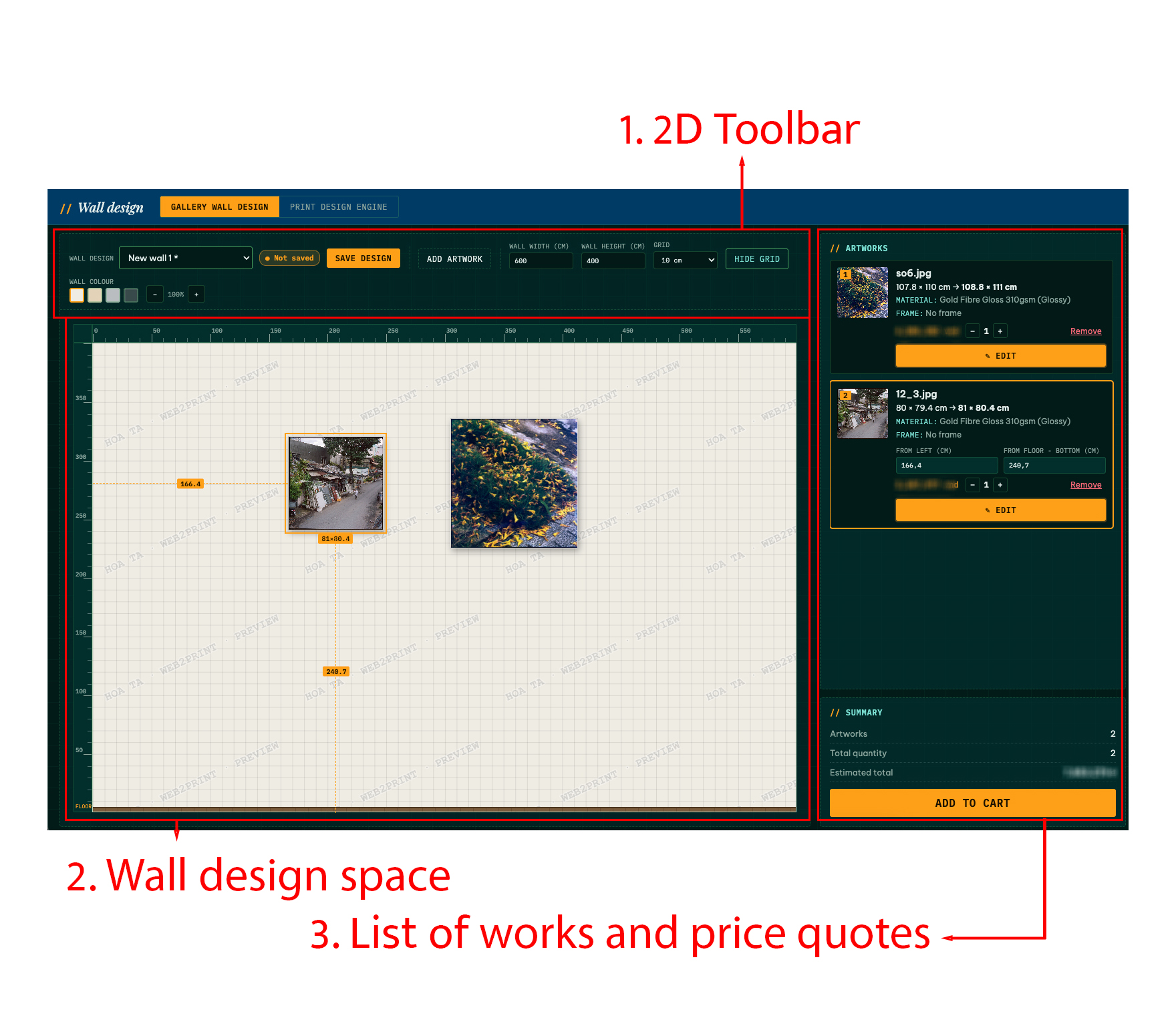
1. 2D Toolbar
The 2D toolbar includes the following functions (from left to right):
Displays the current wall design- shown here as “New Wall 1.” You can save your wall designs for future use.
“Add Artwork” button: used to upload new files.
Width and height dimensions of the wall.
Grid size selection: helps with the precise arrangement of artworks on the wall.
Show/Hide Grid button.
Wall color selection button; there are 4 basic wall colors available for your design.
Zoom in/out button for the wall design.
2. Wall design space
This is where you can preview the arrangement of your artworks on a wall. The dimensions are represented accurately, making it easier to visualize the layout and carry out the actual installation of the pieces.
3. List of works and price quotes
The list of artworks provides an overview of your pieces, including key details such as: an illustrative image, title, dimensions, paper type, and the price for each individual work.
Below the Overview section, you will find the price quote for all the products in your order.